Skip to content
Deals and activities

Every deal in sight, stage by stage

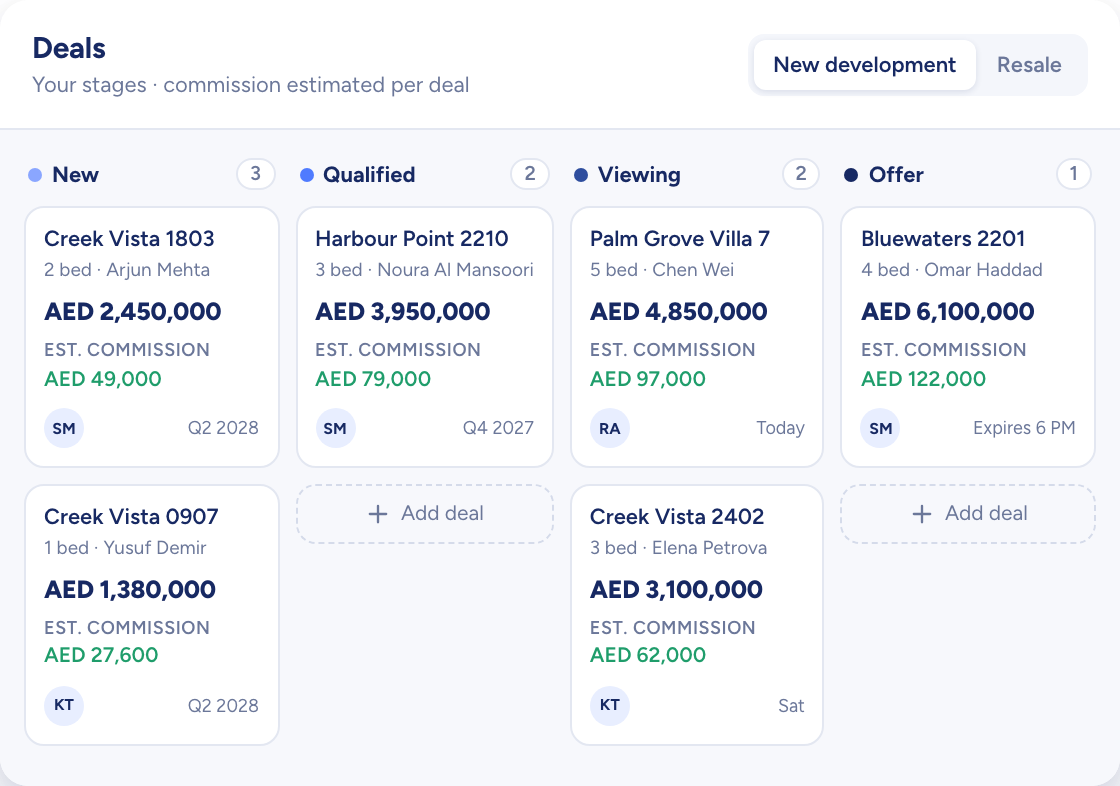
Deals sit on a board by stage. Open one and the contact, the listings, each offer and the commission estimate are on the same record, with a count of the days it has spent in its current stage.

A model house moving along a track through a series of white arches towards a key
Deals on a board by stage, each card with its price and estimated commission
  • Separate deal flows for new developments and resale
  • Days in stage counted on every deal
  • Add, hide or reorder stages in Settings
How it flows

Interest in, closed deals out

What goes in

  1. 01 A buyer or tenant ContactBudget range
  2. 02 The listings AI suggestionsAdded by hand
  3. 03 Offers Offer priceAcceptReject
Deals on a board by stage, each card with its price and estimated commission

What comes out

  • A board by stage Drag to moveDays in stage
  • Your calendar ViewingsCallsEvents
  • Commission Agreed rateAgent splitEstimate
What it does

A board that shows where each deal stands

Drag a deal across the board to change its stage, or update it from the record. Scheduling a viewing creates the activity, accepting an offer moves the deal forward, and closing one as lost asks you for the reason.

  • Table, card and kanban views
  • New developments and resale kept apart
  • Days in stage on every deal record

A model house moving along a track through a series of white arches towards a key
Deals on a board by stage, each card with its price and estimated commission

The whole deal on a single record

The buyer or tenant, the agent, the listings, every offer and a dated stage timeline sit together. Switch on AI suggestions when you create the deal and matching listings are filled in for you.

  • Offers marked pending, accepted or rejected
  • Commission as a rate or a fixed amount, with the agent split
  • Custom fields an admin sets for each stage
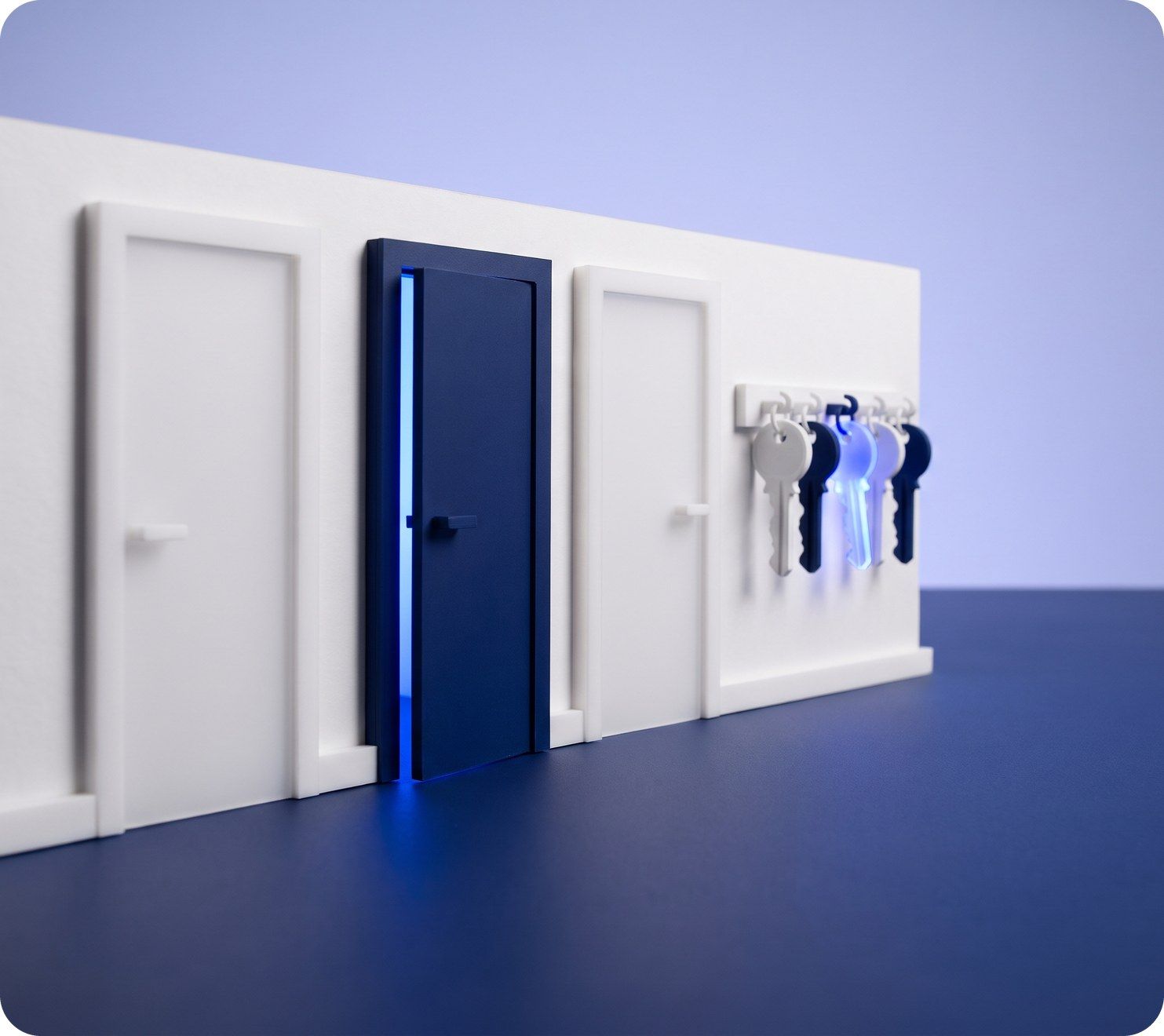
Three model doors in a white wall, one navy, with keys hanging on a rack
You add
  • Buyer
  • Listings
  • Offers
  • Commission
Raptor Neo

Viewings, calls and events, by day, week or month

Log each activity against its contact, its deal and as many listings as it covers, then see the lot on the calendar or in a table. Once an activity's time has passed, its details lock and only the outcome can change.

  • Week view by default, with day and month
  • Several listings on one viewing
  • Outcome set as completed, no-show or cancelled
A curved white model desk with three blank screens and a blue glow
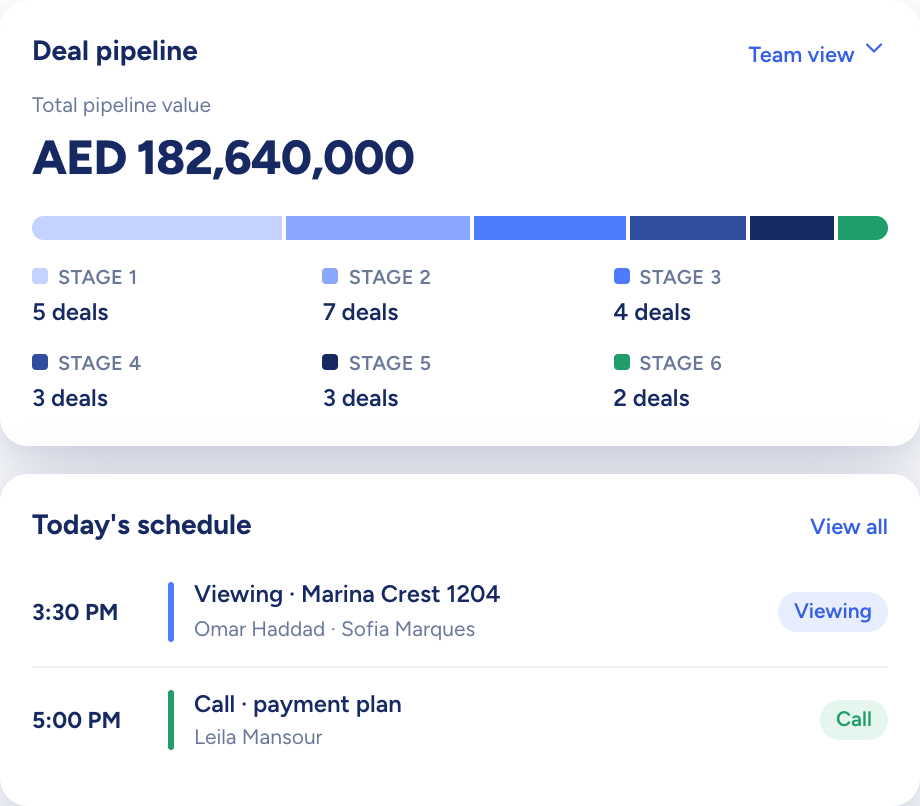
The dashboard: total pipeline value by stage above today's schedule

Deals and activities at work

The jobs it takes off an agent's desk, week in, week out.

Questions

Asked and answered

Can we change the deal stages?

Yes. New developments and resale each have their own stage list in Settings. Reorder the stages, hide the preset ones you don't use and add your own. Each stage can carry its own custom fields.

How is commission estimated?

Each deal's commission estimate shows the agreed rate, either a percentage or a flat amount, the agent split, and estimates against both the offer and the asking price.

What happens when an offer is rejected?

The offer is marked as not accepted and stays on the deal. You can add another offer whenever one comes in.

Which activity types are there?

Three: viewings, calls and events. To keep a record of an email, log it as an event.

Can I edit an activity after it has happened?

Not its details. Once the scheduled time has passed, the fields lock and you set the outcome: completed, no-show or cancelled.

Who can see my deals?

You, your team lead and your agency's admin. Deals and activities stay with the agent who owns them.

Every dealin sight.

Start the free trial today, or book a demo and see it run on your own listings.